Time tracking software that is fun to use
Save time – Boost your productivity
Easy. Modern. Digital.
More than 3000 companies trust timr everyday





Why is timr the right tool for your business

One click time tracking
With just one click time tracking your team has more time for the really important things.
Use timr on every device
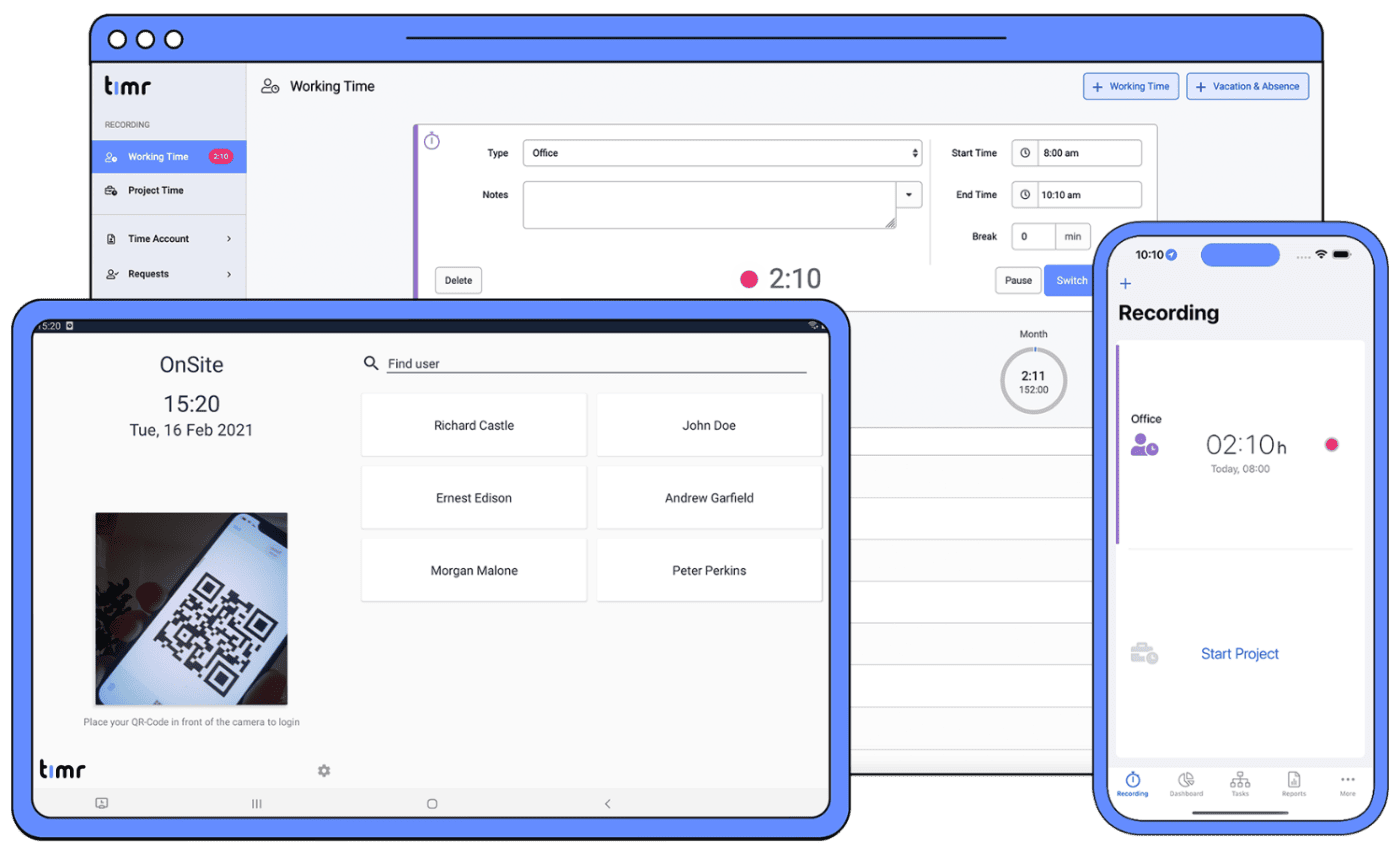
Using our online solution, Mobile Apps (Android & iOS) or Time Kiosk. Your team can use timr everywhere & anytime.

Take informed decisions
Data from all projects are put together into a dashboard that helps you take the right decisions.

Solid partner for more than 10 years
We help companies making time tracking easier by digitalizing workflows for more than 10 years.
Bill your customers faster
Accurate and fast time tracking helps you invoice your customers faster for the work you have already done.

Stellar customer support
Our customers love our customer support. In case you have a problem, we are happy to help.
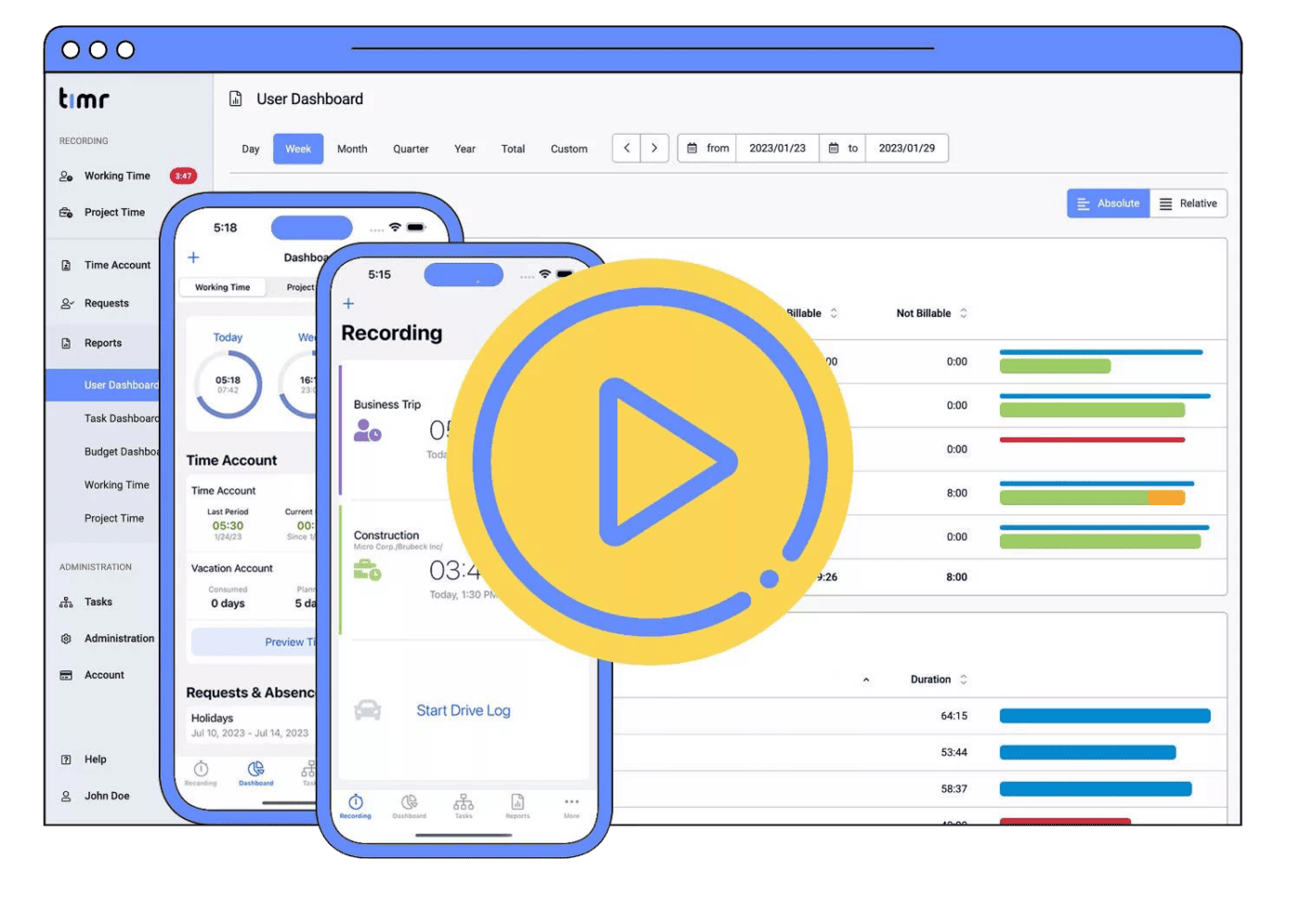
See how easy it is to use timr

Our customers speak for us
I like time tracking more now than ever before, we have less work, but more output and super statistics.

We save 80% of the time we used for time tracking and calculation.

We implemented timr about three years ago as an Employee time clock and time tracking system and are very happy with it.

All the tools you need for your business in one place

Employee time clock
The Employee Time clock tool helps you manage all working hours, absences and vacation of your employees. Use it on any device, we will synchronize all data automatically.

Time tracking
Keep track of the projects & tasks your team is working on. Clear dashboards help you take better decisions for your project and budgets.
Time tracking app
Boost your time tracking with the timr time tracking App for Android and iOS. Features like Offline use & GPS Positioning makes it perfect for employees doing field work.

Absence management
Keep up with your employees absences & holidays with timr. A calendar overview and other features will help you keep all the information in one place.

Digital mileage tracking
Have a car fleet? Tax compliant mileage tracking is easily possible via the App. GPS position detection saves you having to enter addresses.

Time clock kiosk
The timr Time Kiosk works on Android tablets, and it’s perfect for mobile crews and teams that work at the same place. Employees can easily clock in and out.